
- Usage
- Launching the Color Module
Launching the Color module
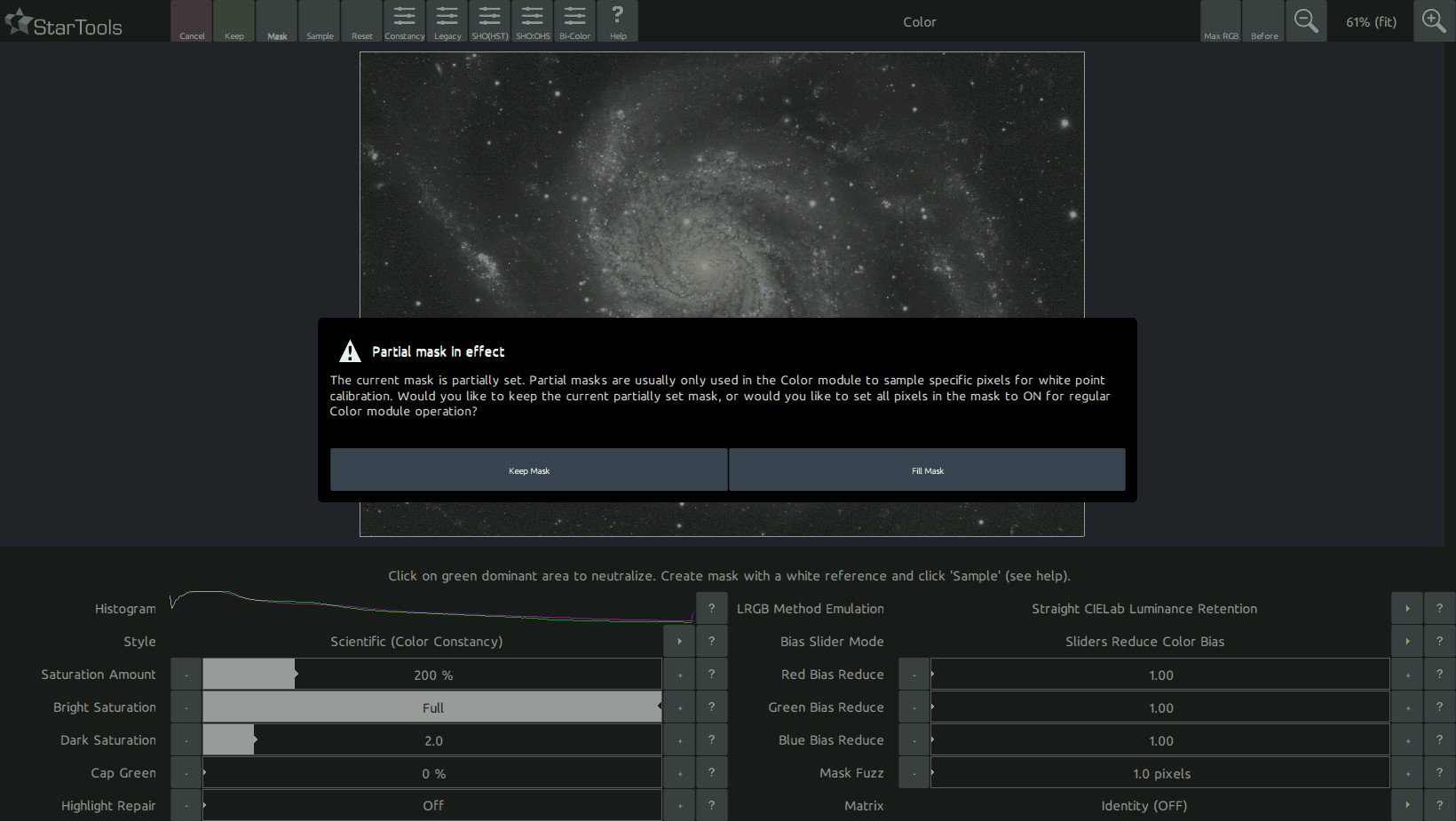
Upon launch, the colour module blinks the mask three times in the familiar way. If a full mask is not set, the Color modules allows you to set it now, as colour balancing is typically applied to the full image (requiring a full mask).
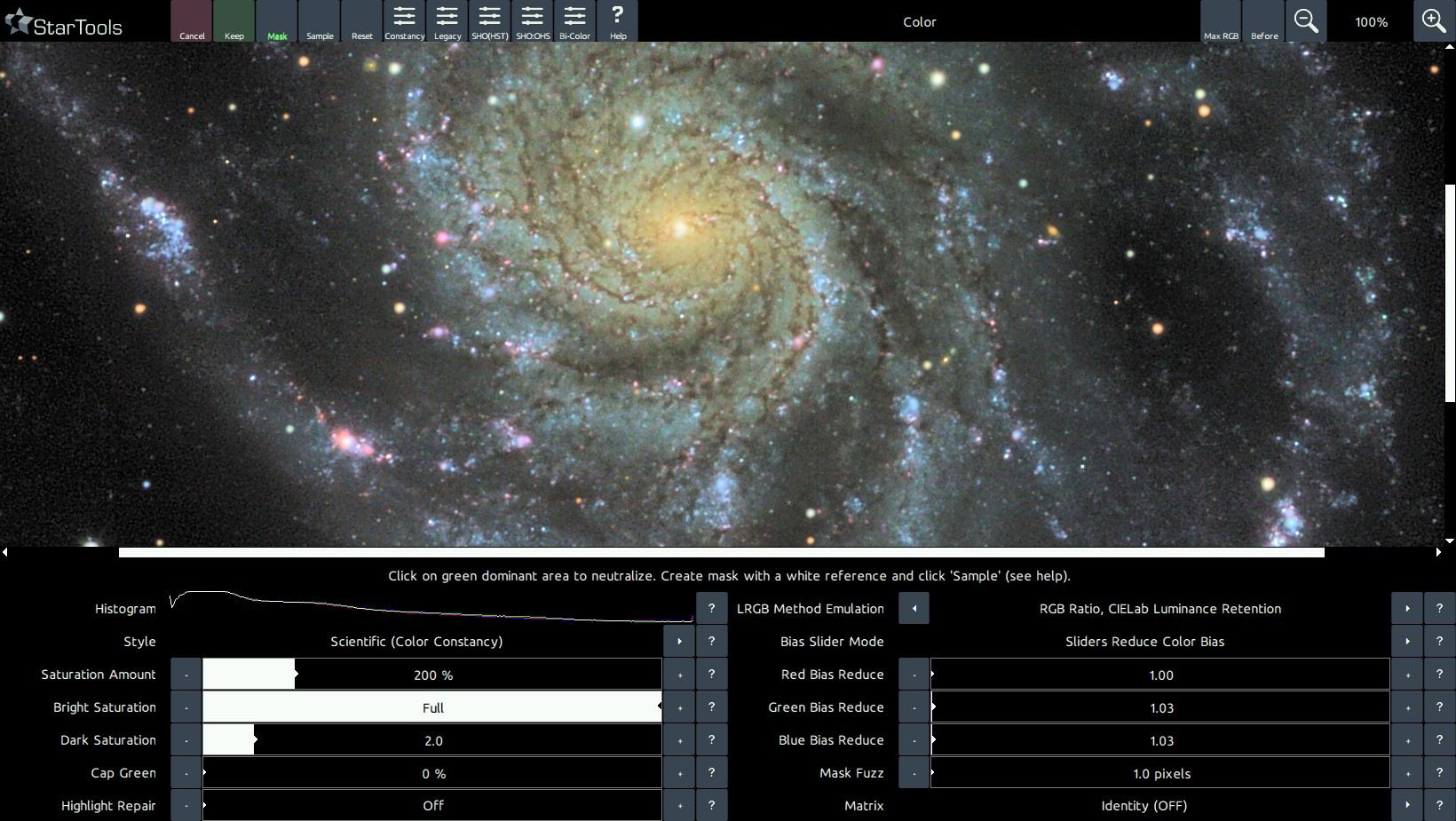
In addition to blinking the mask, the Color module also analyses the image and sets the 'Red, Green and Blue Increase/Reduce' parameters to a value which it deems the most appropriate for your image. This behaviour is identical to manually clicking the 'Sample' button where the whole image is sampled.
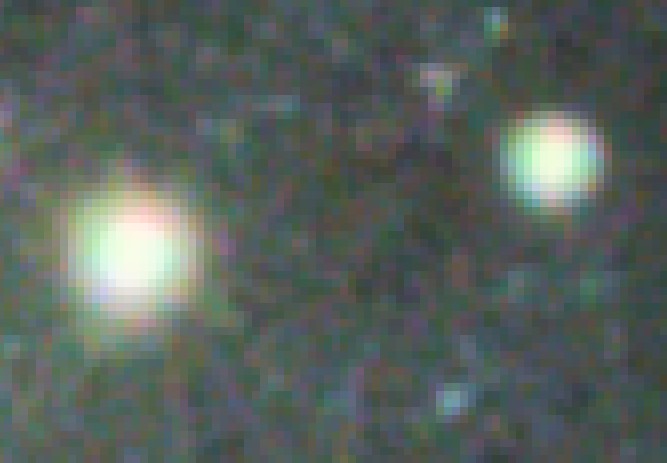
In cases where the image contains aberrant colour information in the highlights, for example due to chromatic aberration or slight channel misalignment/discrepancies, then this initial colour balance may be significantly incorrect and may need further correction. The aberrant colour information in the highlights itself, can be repaired using the 'Highlight Repair' parameter.
You may also be interested in...
- Narrowband accents (under Usage)
The NBAccent module is a powerful module that starts its work as soon as your load your data in the Compose module.
- Usage (under Stereo 3D)
The 'Intricacy' parameter controls how much smaller scale detail should prevail over larger scale detail.
- Modes of operation (under Usage)
When multiple star samples are provided, the SVDecon module will operate in the most advanced way.
- Usage (under Crop)
A 'Color'/'NBAccent' button is available, which functions much like the 'Color'/'NBAccent' button in the Wipe module.
- Crop: Express Cropping Tool with Switchable Luminance, Chrominance and Narrowband Accent Previewing (under Features & Documentation)