- Guides, tutorials and docs
- Learning the Woovebox
- The very basics
- Quick start tutorial and video
- Tempo and BPM
- Tracks
- Patterns
- Live pattern recording
- Conditional triggering and modification
- Chords
- Arpeggios
- Scales and modes
- Genres
- Patches and Presets
- Sound design
- Paraphonic parts
- Multi-instrument mode
- Risers, fallers, sweeps & ear candy
- Live mode
- Song mode
- Full song writing
- Sampler & vocoder
- Sidechaining, gating, ducking and compression
- Mastering
- Lo-fi & vintage analog and digital emulation
- Randomization
- Hall effect sensor playing
- Advanced techniques
- Undo
- Boot modes
- MIDI, Sync and connecting other gear
- Remote control expander mode
- Wireless MIDI over Bluetooth
- Battery and charging
- Hardware quirks and limitations
- Understanding DSP load
- Looking after your Woovebox
- Firmware updates
- Quick start tutorial and video
- Select and initialize a song
Select and initialize a song
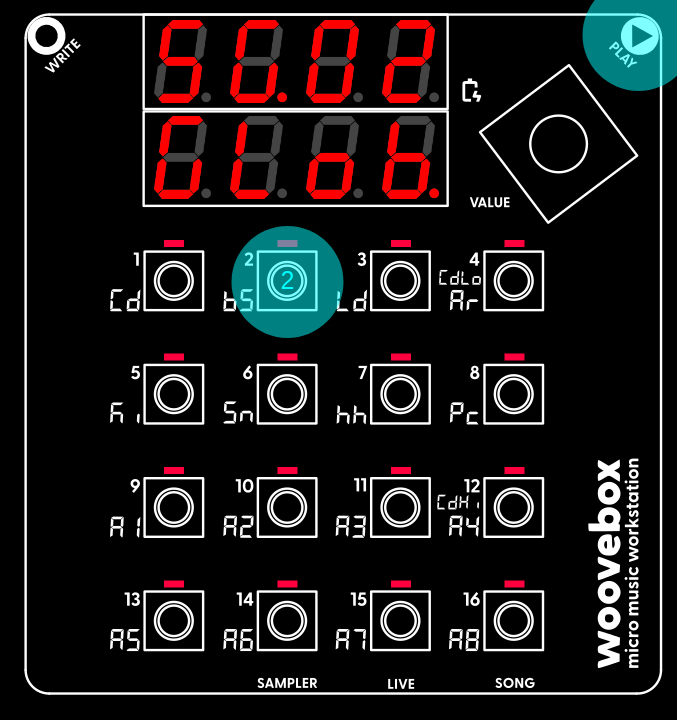
If you wish to select a different song to work on, you can do so by holding play and pressing 1-16 to select song 1 through 16.
If you wish to start over with the currently selected song by resetting and clearing it, you can do so through the context menu;
- Hold write and short-press the value knob to cycle through the options until you find the "Init rand" menu item.
- Once found, long-press ("long-pressing" meaning, holding down for more than one second) the value knob to action the item. The song will be cleared and your Woovebox will report "Init oK".
- Release write to exit the context menu.
- All patterns are cleared, and tracks are initialized with random (but typically appropriate) presets to get you started quickly.
Note that these context menus are available in a number of different places around the Woovebox UI, and they all work in the same way. Please take note of how to use them, as they often hide handy features, functions and short-cuts.
You may also be interested in...
- Fragment DJ FX Mode (under Fragments; arranging and building your song)
Fragment DJ mode is an alternative view of a programmed fragment.
- Randomizing events (under Randomization)
Your Woovebox can use randomization to trigger (or not trigger) some events.
- Using Teenage Engineering OP-1 / OP-Z sample kits (under Sampler & vocoder)
Your Woovebox is partially compatible with Teenage Engineering OP-1 / OP-Z sample kit (aka "drum kit") AIFF files.
- 10. bt.Cr bit crush (under Glob Gobal page)
Two types of bit crushing can be selected; pre- or post-filter/clip distortion.
- Lo-fi & vintage analog and digital emulation (under Guides, tutorials and docs)
Here too, the sounds your Woovebox produces can be made to - just like the vintage analog drum computers - never be 100% the same on every trigger.
- Guides, tutorials and docs
- Learning the Woovebox
- The very basics
- Quick start tutorial and video
- Tempo and BPM
- Tracks
- Patterns
- Live pattern recording
- Conditional triggering and modification
- Chords
- Arpeggios
- Scales and modes
- Genres
- Patches and Presets
- Sound design
- Paraphonic parts
- Multi-instrument mode
- Risers, fallers, sweeps & ear candy
- Live mode
- Song mode
- Full song writing
- Sampler & vocoder
- Sidechaining, gating, ducking and compression
- Mastering
- Lo-fi & vintage analog and digital emulation
- Randomization
- Hall effect sensor playing
- Advanced techniques
- Undo
- Boot modes
- MIDI, Sync and connecting other gear
- Remote control expander mode
- Wireless MIDI over Bluetooth
- Battery and charging
- Hardware quirks and limitations
- Understanding DSP load
- Looking after your Woovebox
- Firmware updates