
- Interface
- Zooming, panning and scaling
Zooming, panning and scaling
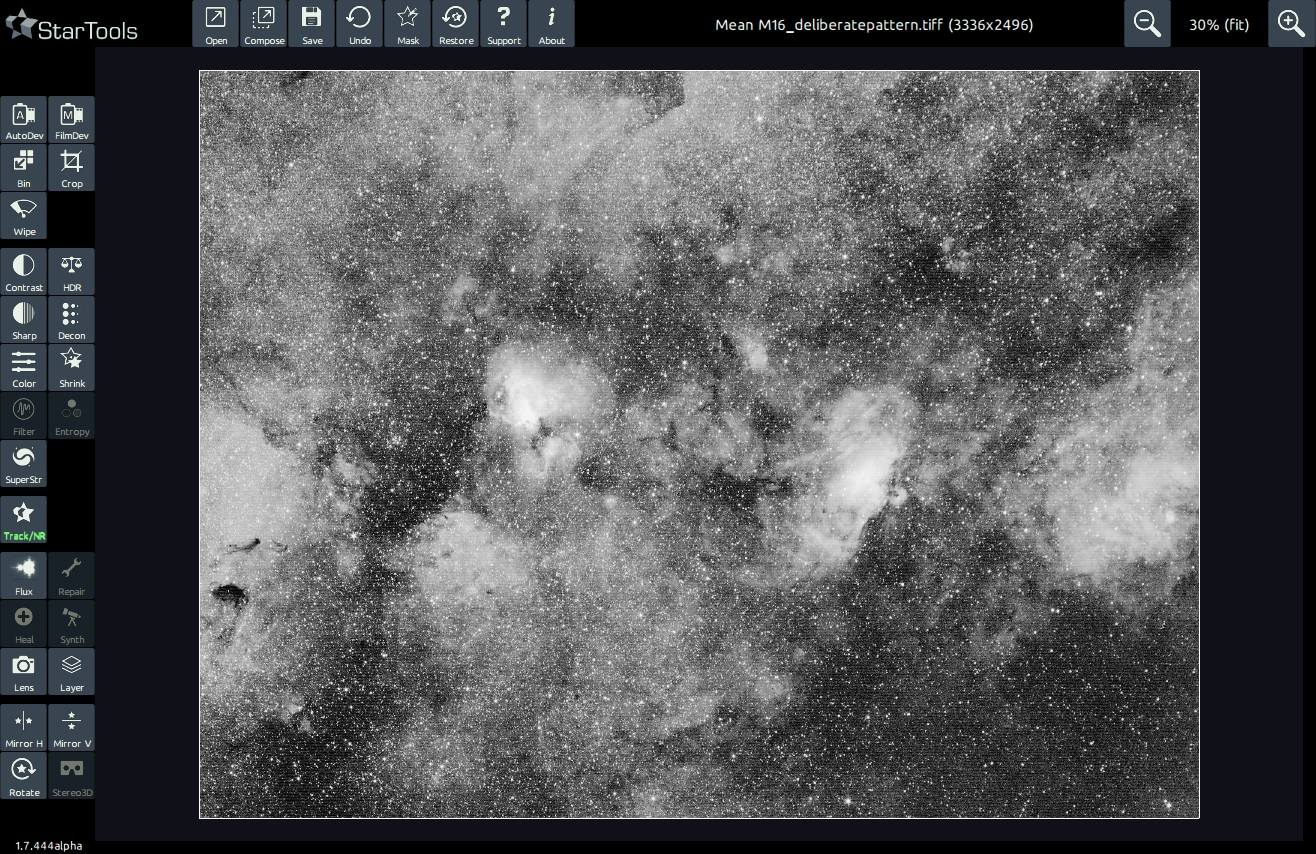
Even the way StarTools displays and scales images, has been created specifically for astrophotography.
StarTools implements a custom scaling algorithm in its user interface, which makes sure that perceived noise levels stay constant, no matter the zoom level. This way, nasty noise surprises when viewing the image at 100% are avoided.
StarTools implements a custom scaling algorithm in its user interface, which makes sure that perceived noise levels stay constant, no matter the zoom level.
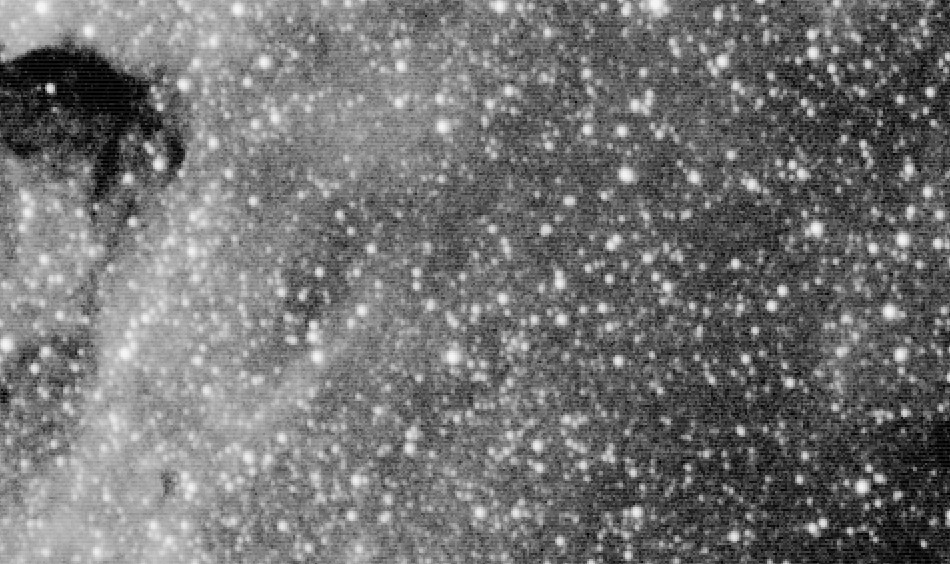
Even more clever, StarTools scaling algorithm can highlight latent and faint patterns (often indicating stacking problems or acquisition errors) by intentionally causing an aliasing pattern at different zoom levels in the presence of such patterns.
You may also be interested in...
- L. B., United States (under Testimonials)
I'm relatively new to image processing and just wanted to say how straight forward and powerful StarTools is.
- Log (under Introduction)
StarTools keeps a detailed log of what modules and parameters you used.
- Step 2: Inspect your dataset (under Quick Start)
At this point, things to look out for are; Stacking artefacts close to the borders of the image.
- Step 5: Detail enhancement (under Quick Start)
There are many ways to enhance detail to taste and much depends on what you feel is most important to bring out in your image.
- Standalone Virtual Reality experience (under Exporting 3D)
The 'WebVR' button in the module exports your image as a standalone HTML file.